SAR FAQ for Solavixa Audio Recorder
This SAR FAQ answers common questions about Solavixa Audio Recorder 3.0, including system audio recording, per-application capture, Multi-App recording, microphone tracks, Master Mix, Instant Replay, automation, export, licensing, recovery, and Windows compatibility.
Use this page to understand how SAR works before downloading, purchasing, activating, or configuring the application.
General SAR Questions
What is Solavixa Audio Recorder?
Solavixa Audio Recorder (SAR) 3.0 is a Windows desktop application for advanced local audio recording. It can capture complete system audio, isolate or exclude individual applications, record multiple applications as synchronized tracks, add a microphone, create a Master Mix, and keep recent audio available through Instant Replay.
SAR is designed for users who need more control than a basic one-button recorder while still keeping the workflow clear and focused. Recording, processing, export, and recovery are handled locally on the Windows PC.
Who is Solavixa Audio Recorder designed for?
SAR is designed for anyone who needs reliable and flexible Windows audio recording without the complexity of a full broadcast or studio-routing application.
It is suitable for content creators, researchers, educators, developers, technical support, documentation workflows, tutorials, voice-over work, application testing, browser or media capture, and users who need synchronized recordings from several audio sources.
SAR can be used as a simple system audio recorder or as an advanced multi-source recorder with separate application tracks, microphone capture, Master Mix, and Instant Replay.
What is new in SAR 3.0?
SAR 3.0 is a major upgrade that expands the application far beyond traditional system audio recording.
New and improved capabilities include:
- Application Capture with INCLUDE and EXCLUDE modes
- Multi-App recording for up to 8 selected applications
- Synchronized separate application tracks
- Microphone recording with independent Mic Gain
- Optional synchronized Master Mix
- Instant Replay with 30-second, 5-minute, and 30-minute history
- Smart Recording, Auto-Split, and Auto-stop
- Background MP3 export and Normalize
- Improved recording and export recovery
- Completely redesigned Recorder interface
- Seven interface languages: English, Czech, German, French, Italian, Spanish, and Simplified Chinese
SAR 3.0 is therefore not just a visual update — it introduces an entirely new multi-source recording workflow.
Does SAR require virtual audio cables?
No. SAR does not require virtual audio cables for its normal supported recording workflows.
System Audio uses Windows loopback capture, while Application Capture uses native Windows process-loopback technology to record supported applications directly.
This means you can capture system audio, isolate one application, exclude one application, or record multiple supported applications without installing additional virtual routing software.
Some Windows applications may not expose an audio session that can be reliably associated with a specific process. In those cases, the application may not appear in the Application Capture list, and System Audio can be used instead.
Recording Sources & Capture Modes
What does SAR record?
SAR 3.0 can record audio in several different ways, depending on what you need:
- System Audio — captures the complete audio output from the selected Windows playback device.
- Application INCLUDE — records only one selected application process tree.
- Application EXCLUDE — records the remaining supported application audio while leaving one selected application out.
- Multi-App Capture — records multiple selected applications as synchronized sources.
- Microphone Track — adds one microphone to an Application or Multi-App session.
- Master Mix — combines selected synchronized sources into one ready-to-use mixed output.
This means SAR can be used as a simple system audio recorder or as a more advanced multi-source recording tool.
Can SAR record only one application?
Yes. Use Application Capture in INCLUDE mode. Select the application you want to record and SAR captures that application process tree while other application audio is excluded from the recording.
This is useful for browser audio, media playback, meetings, tutorials, or any workflow where you need a clean recording from one supported application.
Can SAR record everything except one application?
Yes. EXCLUDE mode does the opposite of INCLUDE. Select one application that should not be recorded and SAR captures the remaining supported application audio while excluding the selected process tree..
EXCLUDE is a single-application mode. It is not combined with Multi-App, microphone, or Master Mix workflows.
Can SAR record multiple applications at the same time?
Yes. SAR 3.0 can record up to 8 selected applications in one synchronized session.
The selected applications can be saved as separate synchronized tracks, combined into a Master Mix, or both.
Can SAR record two windows of the same application separately?
Usually not. Applications such as Firefox may use one shared process tree across multiple windows and tabs, so SAR normally shows them as one application source.
For example, two Firefox windows are generally captured together as one Firefox source rather than as two separate selectable items.
Why does a media player sometimes not appear in the application list?
SAR only lists application audio sessions that Windows can reliably associate with a specific process. Some packaged or multi-process Windows applications may not expose a single usable process identity and can therefore be unavailable for per-application capture.
If that happens, use another supported desktop application, or use System Audio when you want the complete output mix.
Multi-App, Microphone & Master Mix
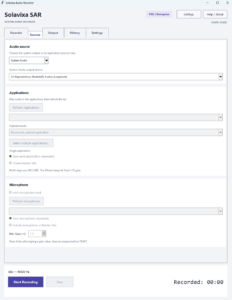
SAR 3.0 can combine several application sources, a microphone, separate synchronized tracks, and an optional Master Mix within one recording session.
Can SAR record multiple applications as separate tracks?
Yes. SAR 3.0 can capture up to 8 selected applications in one synchronized recording session.
Each selected application can be saved as its own separate audio track, while all tracks remain aligned to the same timeline.
This is useful when you want to edit, process, or balance individual sources later instead of receiving only one combined recording.
Can SAR create separate tracks and a Master Mix at the same time?
Yes. You can enable both separate application tracks and Master Mix in the same session.
SAR can therefore create:
- one synchronized file for each selected application,
- an optional separate microphone track,
- and one combined Master Mix.
This gives you both editability and a ready-to-use mixed recording from the same session.
Can I add a microphone to an application or Multi-App recording?
Yes. A microphone can be added to Application and Multi-App recording sessions.
You can choose to:
- save the microphone as a separate synchronized track,
- include it in the Master Mix,
- or do both at the same time.
SAR also provides an independent Mic Gain control so the microphone level can be adjusted separately from application audio.
How does the Master Mix work?
SAR uses fixed equal source weighting in the Master Mix.
If the Master contains N sources, each source contributes an equal 1/N share to the final mix.
For example, with two applications and one microphone:
Master Mix = (App 1 + App 2 + Microphone) / 3
This provides predictable headroom and prevents the Master level from suddenly increasing if one source becomes silent or unavailable.
What happens if one application or the microphone fails during recording?
The remaining healthy sources continue recording.
SAR preserves the audio already captured from the failed source and keeps the shared timeline synchronized. The unavailable source is represented by silence from that point forward instead of ending the entire session.
The Master Mix also keeps its original source weighting, so the remaining sources do not suddenly become louder.
Can I combine System Audio and Application Capture in the same session?
No. SAR 3.0 uses either System Audio or Application Capture as the active source workflow.
System Audio already contains the complete output of the selected playback device, including supported application audio. Adding the same application separately could therefore duplicate that source in the mix.
If you need several specific applications together, use Multi-App Capture instead and select the applications individually.
Instant Replay & Time-Shift
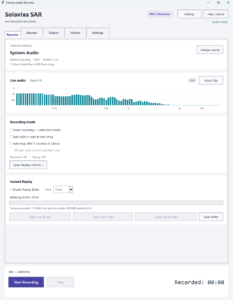
Instant Replay lets SAR continuously keep recent audio available in the background, so you can save something that already happened — even if normal recording was never started.
What is Instant Replay in SAR 3.0?
Instant Replay is a rolling audio buffer that continuously keeps recent captured audio available on disk while the selected source remains prepared.
Instead of pressing Start before something happens, you can let Replay run in the background and save the recent audio afterwards.
Can I use Instant Replay without starting a normal recording?
Yes. Instant Replay works independently from normal recording.
You can enable the Replay Buffer, leave SAR in Idle, and later save the recent audio using one of the available Save Last controls.
This is useful when you want SAR ready in the background but do not know in advance when something worth saving will happen.
How much recent audio can SAR keep?
SAR 3.0 offers three Replay history lengths:
- 30 seconds
- 5 minutes
- 30 minutes
The selected Keep value determines the maximum rolling history SAR maintains.
You can save only a duration that has already been buffered. For example, Save Last 5 min becomes available only after at least five minutes of usable Replay history exist.
Can Instant Replay run while I am recording normally?
Yes. Replay and normal recording can run at the same time.
You can:
- keep Replay active,
- start a normal recording,
- save a Replay snapshot during that recording,
- continue recording,
- and stop the normal recording while Replay remains active.
This makes it possible to create both a normal recording and independent snapshots of recent audio from the same session.
Does Instant Replay work with Multi-App, microphone, and Master Mix?
Replay is disk-backed rather than stored entirely in RAM.
The Recorder shows an estimate of temporary audio usage and required free space. Longer Replay windows and sessions with several synchronized tracks can therefore require more disk space.
Do Smart Recording, Auto-Split, or Auto-stop change the Replay timeline?
No. Replay keeps real elapsed audio history independently from the normal recording automation modes.
This means:
- Smart Recording does not collapse the Replay timeline,
- Auto-stop does not stop Replay,
- Auto-Split does not split the Replay buffer.
Replay continues to represent the recent wall-clock audio history of the prepared session.
Does Instant Replay use memory or disk space?
Yes. Instant Replay works independently from normal recording.
You can enable the Replay Buffer, leave SAR in Idle, and later save the recent audio using one of the available Save Last controls.
This is useful when you want SAR ready in the background but do not know in advance when something worth saving will happen.
Smart Recording, Auto-Split & Auto-stop
SAR 3.0 includes three automatic recording modes for different workflows. Smart Recording can omit silence, Auto-Split detects track boundaries, and Auto-stop ends a recording after continuous silence.
What is Smart Recording?
Smart Recording is designed to reduce unwanted silence in a recording.
With a single source, SAR stays active but writes audio only when meaningful sound is detected. During silence, the recorder waits instead of storing silent blocks. When sound returns, recording continues in the same file.
This is useful for speech, intermittent playback, monitoring, or sessions with long pauses.
Smart Recording does not automatically end the session — use Stop when you are finished.
Does Smart Recording remove silence between audio sections?
With a single source, yes.
Silent blocks that fall below the configured detection threshold are not written to the recording, so separate sections of useful audio can be stored without the long silent gaps between them.
In synchronized Multi-App or microphone sessions, SAR preserves the shared timeline so that separate tracks remain aligned.
What is Auto-stop?
Auto-stop ends the normal recording automatically after approximately 5 seconds of continuous silence.
When the signal falls below the configured silence threshold, SAR starts measuring the silent period. If silence continues for about five seconds, the recording stops and SAR proceeds with the normal save/export workflow.
In a Multi-App or microphone session, the relevant synchronized sources must be silent before Auto-stop can end the recording.
What is Auto-Split?
Auto-Split detects silence between tracks and automatically creates separate recordings.
SAR can wait for the current audio to end, detect the silence boundary, wait for the next track to begin, record that track, save it, and then continue waiting for another track.
This is particularly useful when recording sequential music tracks or other clearly separated audio segments.
What does “Auto-Split: record one track only” do?
When this option is enabled, SAR records and saves one complete detected track and then returns to Idle.
Without this option, SAR can continue waiting for another track after the previous one has been saved.
This is useful when you want to capture exactly one upcoming song or audio segment without manually timing Start and Stop.
Can I change how Auto-Split detects silence?
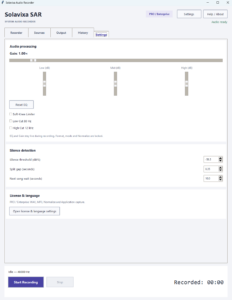
Yes. The Settings page provides controls for silence detection and track boundaries.
You can adjust:
- Silence threshold (dBFS) — determines what SAR considers silence.
- Split gap (seconds) — how long silence must continue before SAR confirms a track boundary.
- Next song wait (seconds) — how long SAR waits for the next track after a boundary before returning to Idle.
Can Smart Recording, Auto-Split, and Auto-stop be enabled together?
No. They are separate recording modes.
Selecting one of these modes disables the others so that SAR always follows one clear automation rule during the active recording.
Normal manual recording remains available when none of the automatic modes is selected.
Audio Processing, Output & Recovery
SAR 3.0 includes live audio processing, flexible WAV/MP3 output, post-recording Normalize, background export, and recovery tools for interrupted saves.
Can I adjust the recording level in SAR?
Yes. SAR provides a live Gain control for the main recording signal.
Use Gain to increase or reduce the level before the audio is written to the recording. Large Gain values can cause peaks to approach full scale, so the live signal and CLIP indicator should be monitored when making adjustments.
If Normalize is enabled, the main Gain control is disabled because the final loudness is handled after recording.
Does SAR include an equalizer and filters?
Yes. SAR includes live audio-processing controls on the Settings page.
Available tools include:
- Low EQ — around 150 Hz
- Mid EQ — around 1 kHz
- High EQ — around 6 kHz
- Soft-Knee Limiter
- Low-Cut 80 Hz
- High-Cut 12 kHz
The EQ bands can be adjusted from negative to positive gain values, while Reset EQ returns all three bands to neutral.
What does the Soft-Knee Limiter do?
The Soft-Knee Limiter helps control strong peaks more gradually than hard clipping.
It is useful when the source occasionally produces sudden loud transients, but it should not be used as a replacement for sensible source levels or Gain settings.
What does Normalize do?
Normalize adjusts the completed recording after capture.
SAR analyzes the finished audio and scales the final output to an 80% peak target.
Normalize is different from live Gain:
- Gain changes the audio while it is being captured.
- Normalize adjusts the finished output after recording.
Normalize is available with PRO / Enterprise licensing.
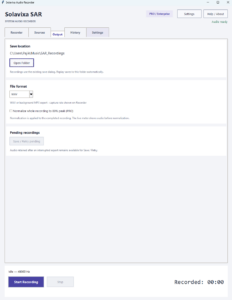
Which output formats does SAR support?
SAR supports:
- WAV — uncompressed audio output
- MP3 — compressed output for smaller files and easier distribution
MP3 export uses the bundled FFmpeg runtime.
WAV is available in Trial, PRO, and Enterprise. MP3 requires PRO / Enterprise.
Can SAR export in the background?
Yes.
Export and conversion are separated from the live capture path, so a completed recording can continue processing in the background while SAR remains available for the next recording workflow.
This is especially useful for longer MP3 exports.
What happens if an export is interrupted?
SAR can retain recoverable audio and show it as Pending after restart.
If the audio was already preserved before the interruption, use:
Output → Save / Retry pending
to complete the save again.
This recovery workflow is designed to protect captured audio first and finish the export afterwards.
Where are recordings saved?
The Output page shows the current recording folder and provides Open Folder for direct access in Windows Explorer.
Replay snapshots also use the configured recording output location.
Can a failed source destroy the whole recording?
Not in a synchronized Multi-App or microphone session.
If one source becomes unavailable, SAR preserves the audio already captured from that source and continues recording the healthy sources. The failed source is represented by silence from that point forward so the shared timeline remains synchronized.
The Master Mix keeps its original fixed source weighting.
Licensing, Trial & Languages
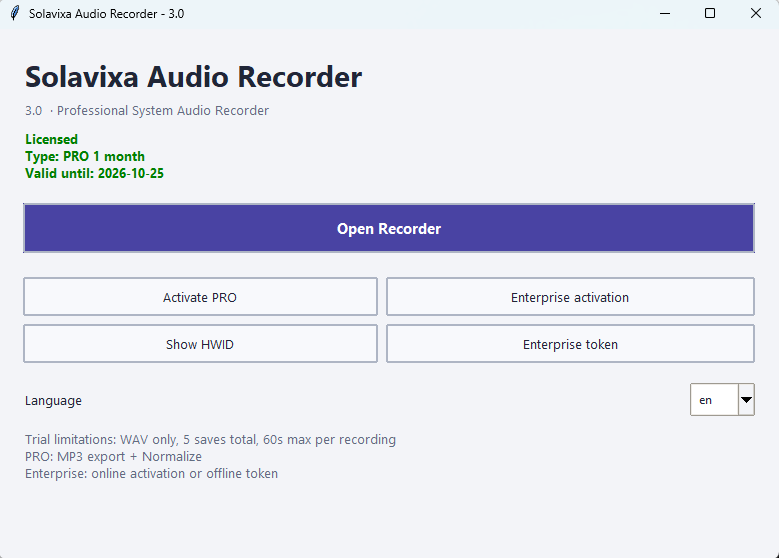
SAR 3.0 is available as Trial, PRO, and Enterprise. The application also supports seven interface languages and both online and offline Enterprise activation workflows.
What are the limitations of the SAR Trial?
The Trial is intended for evaluating the basic SAR workflow before purchasing a license.
Trial limitations are:
- WAV output only
- Maximum 60 seconds per recording
- Maximum 5 saved recordings
- Advanced PRO / Enterprise features remain locked
The Trial is useful for checking compatibility, basic system-audio recording, the interface, and the general workflow on your Windows PC.
What features require PRO or Enterprise?
The advanced SAR 3.0 workflow requires a valid PRO or Enterprise license.
This includes features such as:
- Application Capture
- INCLUDE / EXCLUDE
- Multi-App recording
- Microphone workflows
- Master Mix
- Instant Replay
- MP3 export
- Normalize
- other advanced features exposed by the licensed Recorder interface
What is the difference between PRO and Enterprise?
PRO is intended for individual licensed use for a defined period, while Enterprise provides lifetime access for the licensed device.
Available license models include:
- PRO 1 Month
- PRO 3 Years
- Enterprise Lifetime
- Enterprise Lifetime Multilicense
Enterprise also supports the dedicated Enterprise activation workflow, including offline token activation.
What is the 14-day grace period?
Time-limited PRO licenses include an additional 14-day grace period after the paid license term ends.
This means a 1-month or 3-year PRO license does not lose PRO functionality immediately on the exact expiration date.
The grace period does not apply to Enterprise Lifetime licenses because those licenses do not expire.
Can SAR Enterprise be activated offline?
Yes.
Enterprise supports:
- online Enterprise activation
- offline Enterprise token activation
This is useful for systems where normal online activation is not preferred or where a more controlled activation workflow is required.
Can I move a PRO 3 Years license to another device?
SAR PRO 3 Years includes a device-reset workflow for moving the license to a replacement or new device, subject to the applicable reset rules and availability period.
The reset process uses the original order information and the Solavixa licensing system.
Which interface languages does SAR support?
SAR 3.0 supports seven interface languages:
- English
- Czech
- German
- French
- Italian
- Spanish
- Simplified Chinese
The selected language is applied to the main application window and the Recorder interface.
Do I need to restart SAR after changing the language?
Yes, a restart is recommended after changing the interface language so the selected language is applied consistently across the application.
Compatibility, Requirements & Troubleshooting
SAR 3.0 is designed for Windows desktop recording workflows. Most problems can be resolved by checking the selected source, refreshing devices or applications, and confirming that the required runtime components are available.
Which versions of Windows does SAR support?
SAR 3.0 is designed for modern 64-bit Windows desktop systems, including Windows 11 and supported Windows 10 environments.
The application uses Windows audio capture technologies and therefore depends on the capabilities exposed by the operating system and installed audio devices.
Does SAR require a specific sound card?
No special sound card is required.
For System Audio recording, SAR uses the selected Windows playback device and loopback capture.
For Application Capture, SAR uses native Windows process-loopback technology when the selected application exposes a compatible audio session.
Why is my application not listed in Application Capture?
SAR only lists applications that Windows can reliably associate with a usable audio process/session.
If an application does not appear:
- start audio playback in the application,
- click Refresh Applications,
- confirm that the application is producing audio,
- and try again.
Some packaged or multi-process applications may not expose a suitable process identity. In that case, use System Audio or another supported desktop application.
Why is my microphone not listed?
Connect the microphone and click Refresh microphones.
Then select the required input device from the microphone list.
If the microphone was disconnected during a session, reconnect it and use Refresh rather than relying on automatic fallback.
What does “Source unavailable – reconnect the device/application and click Refresh” mean?
The selected source is no longer available or could not be prepared safely.
Reconnect or restart the original application/device and click the appropriate Refresh button.
SAR intentionally avoids automatically switching to another process or device, because doing so could capture the wrong source.
Why is Instant Replay disabled?
Replay requires:
- PRO or Enterprise
- a healthy prepared source,
- a compatible 48 kHz capture workflow for Application/Multi-App/Microphone sessions,
- enough Replay history for the requested Save Last duration,
- and sufficient free disk space.
If Replay was disabled after a source failure, reconnect the source and use Refresh.
Why is Save Last 5 min or Save Last 30 min disabled?
The requested amount of Replay history must already exist.
For example:
- Save Last 30 sec requires at least 30 seconds buffered,
- Save Last 5 min requires at least 5 minutes buffered and a suitable Keep setting,
- Save Last 30 min requires a full 30-minute history and sufficient free disk space.
Why is the recording too quiet?
First check the source application’s own playback level.
If the source is still too quiet:
- increase Gain gradually,
- for microphone recording, increase Mic Gain carefully,
- watch the live signal and CLIP indicator.
Avoid compensating with unnecessarily large Gain values if the source application itself is simply playing at a low level.
Why does the recording sound distorted or clipped?
Reduce the relevant level:
- main Gain,
- Mic Gain,
- or strong positive EQ boosts.
The Soft-Knee Limiter can help control occasional peaks, but it should not replace sensible input levels.
After adjusting, use Reset Clip to monitor for new clipping events.
Where can I find more detailed instructions?
See the SAR 3.0 User Guide for detailed workflows, screenshots, explanations of every control, Instant Replay behavior, Multi-App recording, microphone setup, recovery, and practical recording scenarios.
Need More Information About SAR 3.0?
Explore the full product page, compare license options, download the User Guide, or try SAR 3.0 on your Windows PC.