SWA 2.1 User Guide for Solavixa Web Archive
Web URL · Local HTML · ChatGPT Export ZIP · Image / Screenshot to DOCX · PDF · DOCX · HTML · Markdown · OCR · Analysis · Assets · Licensing
This SWA 2.1 User Guide explains how to use Solavixa Web Archive Studio for professional web archiving, ChatGPT conversation preservation, structured document export, local Image / Screenshot to Editable DOCX conversion, OCR review, licensing, and troubleshooting
Main Window Overview
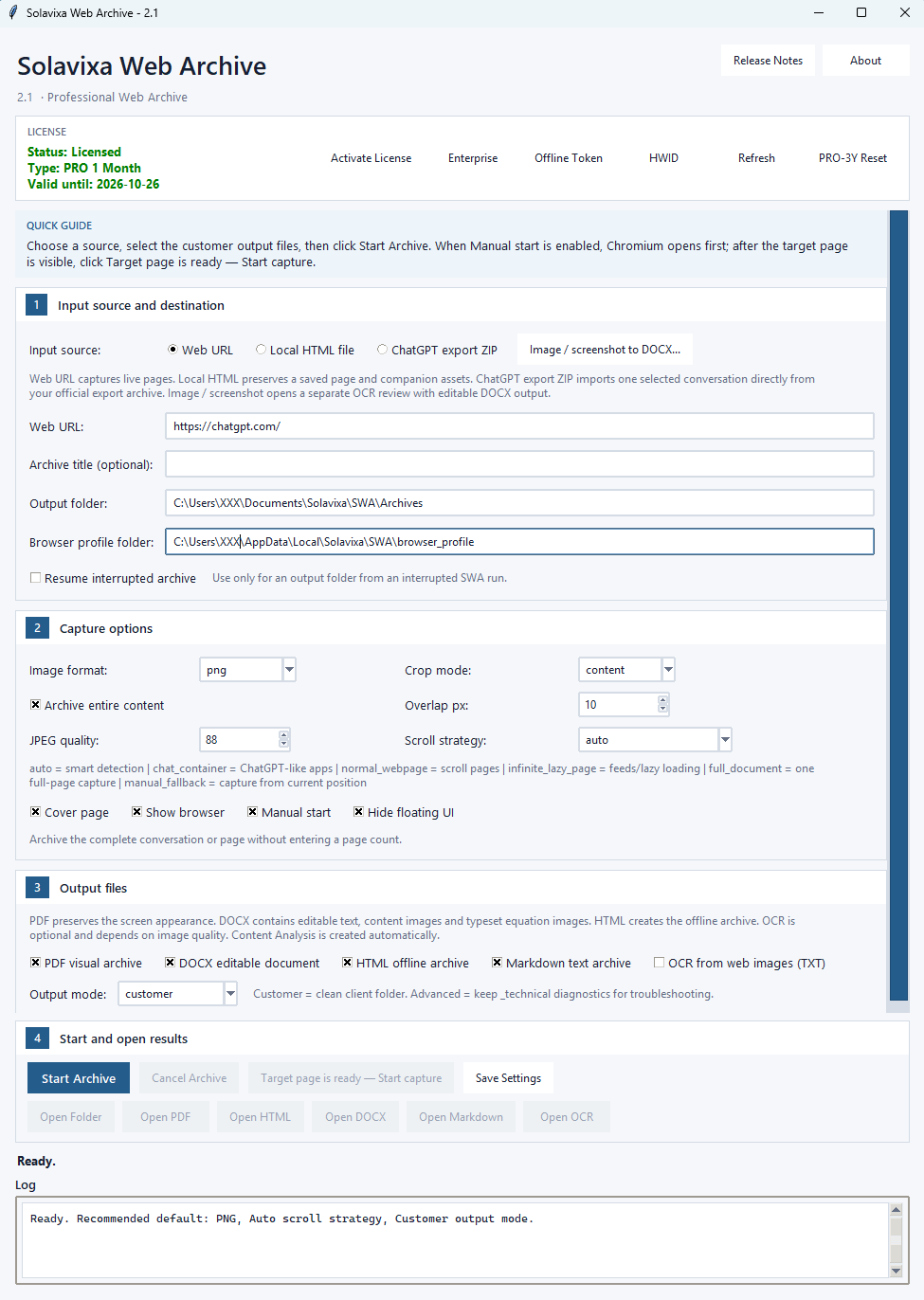
Solavixa Web Archive Studio 2.1 uses a guided professional interface that organizes the complete archive workflow into four main sections:
1 — Input source and destination
2 — Capture options
3 — Output files
4 — Start and open results
The upper area contains license information, Release Notes, About, and the Quick Guide. The lower Status and Log areas show the current operation and detailed progress messages.
SWA automatically shows the fields relevant to the selected workflow and keeps the most important archive controls visible and organized.
Header Buttons
Release Notes
Click Release Notes to view information about the installed SWA version, new features, improvements, and corrections.
About
Click About to view product, version, and publisher information.
License Section
The License section shows the current SWA license state, license type, validity information, and available activation or support actions.
License Status
SWA can display states such as Trial, Licensed, License grace period, License expired, or Enterprise-related activation states.
Applicable term licenses include a 14-day grace period after the displayed expiration date. During this period, licensed functionality remains available and SWA clearly identifies the grace-period state.
Activate License
Use Activate License to activate a standard PRO license key, including PRO 1 Month and PRO 3 Years licenses.
Enterprise
Use Enterprise for supported online Enterprise activation.
Offline Token
Use Offline Token when an Enterprise deployment uses the supported offline activation workflow. Follow the activation instructions supplied for the Enterprise license.
HWID
Click HWID to display the hardware identifier used for device binding and supported activation or support checks.
Refresh
Click Refresh to update the displayed license state. SWA can also use online validation to recover a locally stored license state when the server reports that the license is active or within its grace period.
PRO-3Y Reset
Use PRO-3Y Reset when an eligible PRO 3 Years license needs to be moved according to the applicable reset rules. The workflow may require the purchase email and WooCommerce order ID.
Quick Guide
Choose a source, select the required customer outputs, then click Start Archive.
When Manual start is enabled, Chromium opens first. Prepare the target page, then click Target page is ready — Start capture.
Input Source and Destination
SWA 2.1 supports three normal archive input types plus a dedicated image-to-DOCX workflow.
Web URL
Use Web URL to capture a live webpage or supported browser application. Enter the full page address and choose the required capture settings.
This mode is suitable for long articles, documentation, research pages, web applications, support content, and supported conversation pages.
Local HTML File
Use Local HTML file when the source is already stored on your computer..
SWA can create the selected outputs and preserve available supporting resources such as images, CSS, fonts, scripts, and related assets where they can be resolved.
ChatGPT Export ZIP
Use ChatGPT export ZIP with an official ChatGPT data export package.
Select the ZIP, click Load list, choose the required conversation, and start the archive. SWA processes the selected conversation directly from the export package; browser scrolling controls do not apply to this workflow.
Image / Screenshot to DOCX
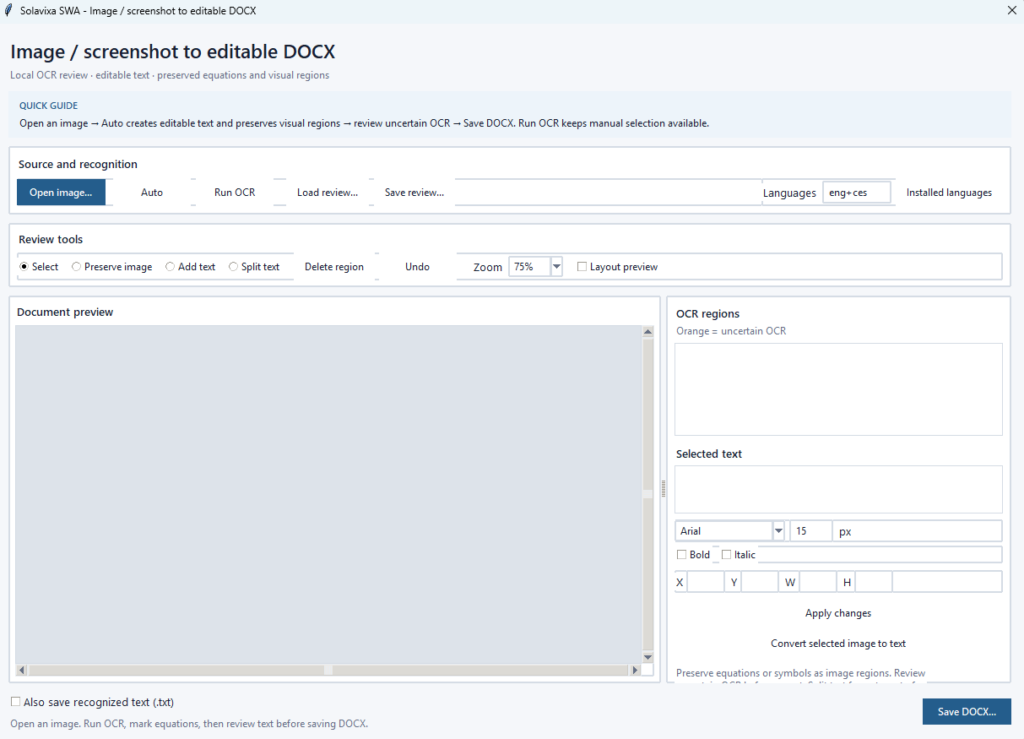
Click Image / screenshot to DOCX… to open the dedicated OCR and document-conversion workspace.
This workflow is separate from normal Web URL, Local HTML, and ChatGPT ZIP archive capture. It converts a standalone image or screenshot into a hybrid editable DOCX.
Archive Title
Archive title is optional. Enter a custom title or leave it empty to allow SWA to derive the title from the source where possible.
Output Folder
Output folder defines where SWA creates the archive and selected customer outputs.
Browser Profile Folder
SWA uses a dedicated browser profile for browser-based capture workflows. Keeping the same profile can preserve compatible session and browser state between runs.
Resume Interrupted Archive
Enable Resume interrupted archive only when continuing a supported incomplete SWA archive.
Resume Folder
Select the existing output folder belonging to the interrupted archive.
Capture Options
Capture options control how SWA captures visual web content and how the browser-based workflow behaves.
Archive Entire Content
Enable Archive entire content when you want the complete available webpage or conversation.
SWA then removes the normal screen-capture count limit and works through the available content until the end is reached.
A screen capture represents one visible browser position. It is not the same as one printed A4 page.
Limited Capture
Disable Archive entire content when only part of a long page or conversation is required.
SWA then uses a screen-capture limit and capture direction. Limited capture starts from the current browser position without first loading the entire history.
Capture Direction
auto — captures upward when starting at the bottom and downward when starting elsewhere.
up — captures toward older or preceding content.
down — captures toward newer or following content.
Image Format
PNG is recommended for text-heavy pages, documentation, and mathematical content.
JPEG may reduce archive size for image-heavy pages.
JPEG Quality
Controls JPEG compression quality when JPEG is selected. Higher values preserve more detail but create larger files.
Crop Mode
content is the recommended normal setting and focuses on the main page content.
Overlap px
Adds a small overlap between consecutive captures to reduce the chance of missing content at capture boundaries.
The recommended default is 10 px.
Scroll Strategy
auto — recommended default
chat_container — ChatGPT-like scrolling containers
normal_webpage — standard webpages
infinite_lazy_page — feeds and lazy-loaded pages
full_document — compatible full-document capture
manual_fallback — capture from a manually prepared position
Cover Page
Adds archive identification and metadata where supported.
Show Browser
Keep the browser visible when login, preparation, or monitoring is required.
Manual Start
When enabled, SWA waits after opening the page. Prepare the page and then click Target page is ready — Start capture.
Hide Floating UI
Attempts to hide floating buttons, sticky widgets, and overlays that could otherwise repeat throughout the captured archive.
Output Files
PDF Visual Archive
Creates Archive.pdf.
For Web URL and Local HTML workflows, PDF primarily preserves the captured visual appearance. For ChatGPT ZIP import, SWA creates a structured document-style PDF.
DOCX Editable Document
Creates Archive.docx with editable body text, structured content, supported images, formatting, and mathematical content.
HTML Offline Archive
Creates a browser-readable offline archive with available supporting assets.
Markdown Text Archive
Creates Archive.md, suitable for editing, search, documentation, version control, and further text processing.
OCR Text from Web Images (TXT)
Optionally extracts recognized text from suitable captured or embedded web images.
This is separate from the dedicated Image / Screenshot to Editable DOCX workflow.
Content Analysis
SWA can create structured archive analysis when suitable source content is available.
Output Mode
Customer mode
Recommended normal mode. Creates a clean customer-facing output folder.
Advanced mode
Retains additional technical diagnostics, state files, and supporting data for troubleshooting and verification.
Image / Screenshot to Editable DOCX
SWA 2.0 includes a dedicated local OCR workspace for converting a standalone image or screenshot into a Word document containing both editable text and preserved visual content.
Supported Images
PNG, JPEG, WebP, BMP, and single-page TIFF are supported.
Multi-page TIFFs and animated images should first be separated into individual images.
OCR Languages
OCR uses the locally installed Tesseract engine and installed language data
For mixed English and Czech content, use eng+ces when both languages are installed.
Auto
Auto is the recommended starting mode.
SWA runs OCR and evaluates recognized text, confidence, mathematical notation, visual content, equations, symbols, and uncertain regions.
It then proposes which areas should remain editable text and which should remain preserved original image regions.
Run OCR
Use Run OCR when you prefer to perform recognition first and manually decide which equations, symbols, graphics, or other regions should remain images.
OCR Review Tools
Select
Select an existing OCR or preserved-image region for review.
Preserve Image
Draw or adjust an area that should remain visually preserved from the original image, such as an equation, mathematical symbol, graphic, or framed expression.
Add Text
Create a missing editable text region.
Split Text
Split a text region so individual parts can use different text, formatting, or placement.
Delete Region
Remove an unwanted region.
Undo
Revert supported recent editing or OCR replacement actions.
Selected Text
Correct recognized text directly before export.
Typography
Adjust font family, size, bold, and italic formatting.
Region Geometry
X and Y control position. W and H control region width and height relative to the source image.
Convert Selected Image to Text
Retry OCR on a preserved image region. If the recognition is worse than the original preserved region, use Undo.
Save and Reopen OCR Reviews
Click Save review… to store the current OCR regions and corrections in a .swa-ocr.json file.
To continue later, open the same original image and click Load review….
SWA verifies the source-image fingerprint to reduce the risk of applying the review to a different image.
The review file does not contain the source image, so keep the original image with the review.
Export Image OCR to DOCX
Click Save DOCX… when the review is complete.
The resulting document combines positioned editable text with preserved original image regions.
Equations, mathematical symbols, graphics, uncertain OCR content, and other visually sensitive material can remain image-based while surrounding recognized text stays editable.
Long images can be divided across A4 pages, and preserved regions are kept together where possible.
Optional TXT
Enable Also save recognized text (.txt) to create a plain-text copy of editable recognized regions.
Content intentionally preserved only as an image is not automatically transcribed into this TXT file.
Mathematical Content
SWA is designed to preserve mathematical structure instead of flattening it into ordinary text whenever the source permits.
It can preserve:
- subscripts
- superscripts
- exponents
- fractions
- Greek symbols
- operators
- equation frames
- aligned expressions
- equation labels
- structured KaTeX content
For DOCX, some display mathematics may be preserved as images when that provides greater fidelity.
Start and Open Results
Start Archive
- Select Web URL.
- Enter the page address.
- Choose an output folder.
- Keep PNG, content crop, 10 px overlap, Auto, and Archive entire content for a normal full archive.
- Select the required outputs.
- Enable Manual start if preparation or login is required.
- Click Start Archive.
- Prepare the browser page if necessary.
- Click Target page is ready — Start capture.
- Review the generated files.
Archive a Local HTML File
- Select Local HTML file.
- Browse to the HTML source.
- Select the output folder.
- Choose the required outputs.
- Click Start Archive.
- Enable Manual start if preparation or login is required.
Archive a ChatGPT Export ZIP
- Obtain the official ChatGPT export ZIP.
- Select ChatGPT export ZIP.
- Browse to the ZIP.
- Click Load list.
- Choose the required conversation.
- Select the required outputs.
- Click Start Archive.
- Review the resulting PDF, DOCX, HTML, Markdown, manifest, images, and files where available.
Convert an Image / Screenshot to DOCX
- Click Image / screenshot to DOCX….
- Click Open image….
- Select OCR languages.
- Click Auto.
- Review editable text and preserved image regions.
- Correct text, formatting, equations, symbols, or region boundaries where required.
- Optionally save the review.
- Click Save DOCX….
- Open the generated document and verify the final result.
Output Folder Contents
A normal SWA archive can include:
Archive.pdfArchive.docxArchive.htmlArchive.mdArchive_OCR.txtArchive_Analysis.txtArchive_Analysis.jsonmanifest.jsonassets/images/assets/files/
The exact contents depend on the selected source, output options, OCR availability, and source material.
Trial, PRO and Enterprise
Trial
The Trial is intended for evaluation and is available for 7 days or up to 5 successful archive or conversion operations, whichever comes first..
PRO 1 Month
Provides the complete supported SWA feature set for one month on the licensed device, followed by the applicable 14-day grace period.
PRO 3 Years
Provides long-term access for three years and includes the applicable 14-day grace period after expiration.
Enterprise Lifetime
Provides permanent Enterprise access according to the purchased activation and deployment terms.
Enterprise Lifetime Multilicense
Provides tailored lifetime licensing for multiple users, devices, teams, or organizational deployments.
Troubleshooting and Practical Tips
The Archive Does Not Start
Check the selected input source and required fields. Review the License status, Status line, and Log.
ChatGPT Conversations Do Not Load
Confirm that the ZIP is an official ChatGPT export package and click Load list after selecting it.
The Page Requires Login
Enable Show browser and Manual start, complete the required preparation in Chromium, then start capture.
The Captured Page Is Incomplete
For complete content, enable Archive entire content. If required, select a scroll strategy better suited to the source.
The PDF Is Very Large
Use JPEG for image-heavy content or reduce JPEG quality. Keep PNG for text-heavy or mathematical archives where fidelity is more important.
OCR Text Is Missing or Incorrect
Verify Tesseract and the selected language data. Recognition quality depends on resolution, contrast, typography, language, and source complexity.
A Formula or Symbol Looks Wrong
In the Image / Screenshot editor, use Preserve image around the complete expression and review adjacent editable text.
Too Much Text Was Preserved as an Image
Select the image region and use Convert selected image to text. Review the result and Undo if necessary.
DOCX Does Not Look Identical to the Source
DOCX prioritizes editability and structured document output. Use PDF when exact visual preservation is the primary goal.
Offline HTML Is Not Fully Interactive
Offline HTML preserves readable content and available assets. It cannot reproduce every live web application, remote API, or interactive service.
Resume Should Not Be Used for a New Task
Resume is only for continuing the same interrupted archive. Start a new output folder for unrelated archive work.
Legal and Technical Note
Solavixa Web Archive is designed for lawful archiving, documentation, research, and professional record-keeping.
Users are responsible for ensuring that they have the right to access, capture, import, store, process, and share the content they use with SWA.
SWA is not a notarization service, legal evidence certification service, or independent chain-of-custody platform.
OCR and automatic visual classification can be imperfect. Important output should always be reviewed before publication, distribution, or reliance.
For governing terms, review the Terms and Conditions, Software License Agreement (EULA), Privacy Policy, and Refund & Cancellation Policy.
Ready to try SWA?
Preserve web content, AI conversations, local documents, and screenshots in formats you can continue to use.